
Free Visual Timer Online
Choose a time, choose what you are doing, and watch the minutes become visible. Use the free ViziCues Quick Visual Timer for homework, reading, breaks, classroom activities, getting ready, and everyday transitions.
Works in your browser. No subscription or login required.
How to start a free visual timer
Choose the time
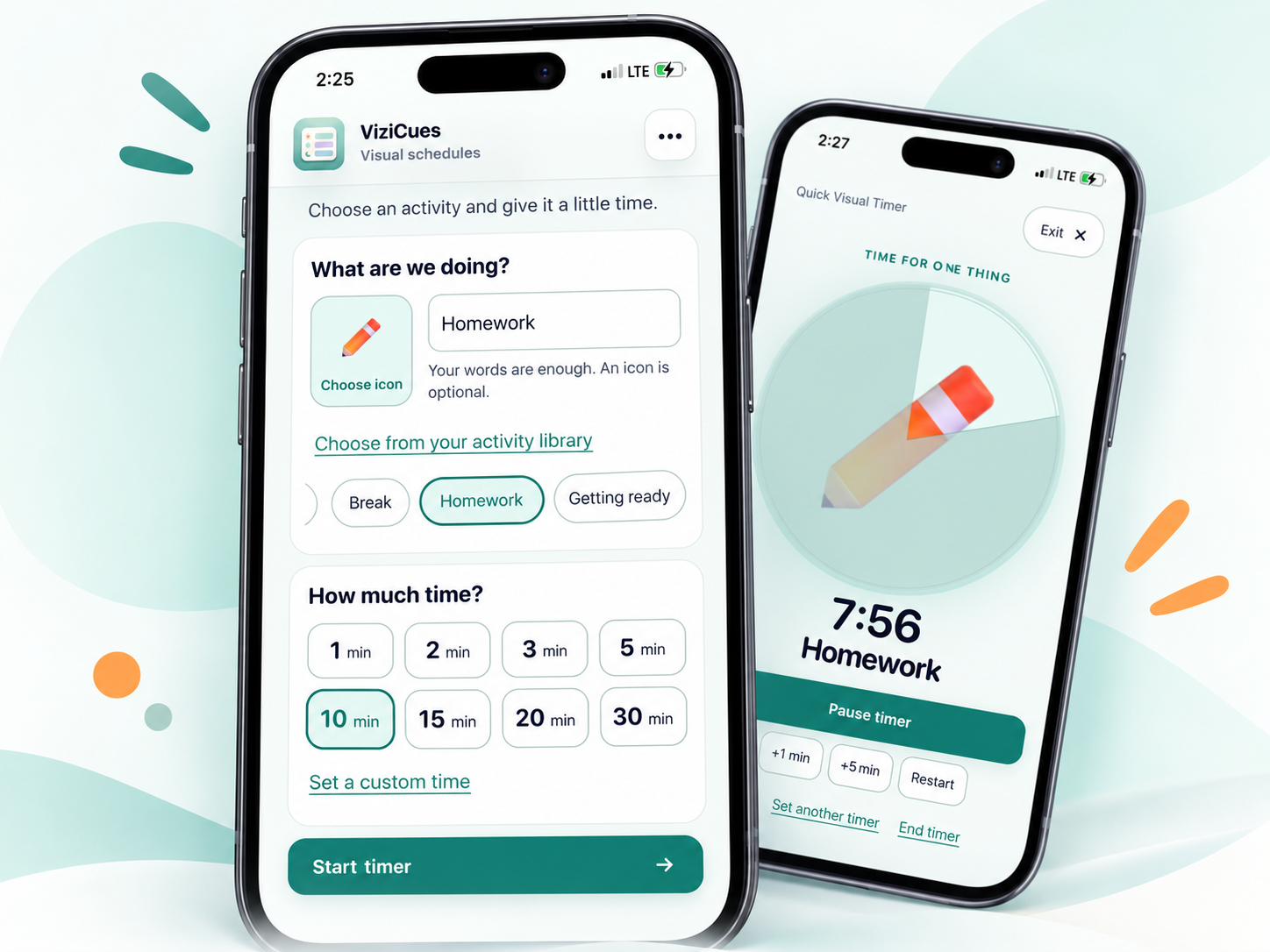
Select a quick duration above, or choose a custom time in the app. The selected preset is ready when ViziCues opens.
Name one activity
Type “Reading,” “Homework,” “Break,” or another useful label. An icon is optional; words are enough.
Start and adjust
Tap Start timer. Watch the visual circle change as time passes. You can pause, restart, or add time if needed.
Prefer to choose without scrolling through examples? Open the Quick Visual Timer setup at any time.
Visual timer examples: from 1 to 30 minutes
There is no perfect duration for every child, student, or adult. These are starting points, not deadlines. Choose a time based on the activity, the person’s preferences, and whether seeing the countdown feels helpful.
1-Minute Visual Timer
A one-minute visual timer is a tiny, visible boundary for a simple action or a very short wait. It is not meant to make a difficult task suddenly easy.
Ways to use 1 minute
- One-item resetPut one book on the shelf, place shoes by the door, or gather a pencil before beginning.
- Brief turn-takingShow a short remaining wait when a turn is genuinely due in about a minute.
- Transition previewGive a visible heads-up before an activity changes, if one minute is enough notice for that person.
- Breathing spaceOffer one minute of quiet or stillness without insisting on a particular result.
Helpful tip: One minute can feel abrupt for a transition. If it raises stress, try a longer preview instead.
If that sounds like the right amount of time, open the one-minute countdown with 1 minute preselected and choose the activity you want to time.
Start 1-Minute Visual Timer →2-Minute Visual Timer
A two-minute visual timer can make starting feel less demanding. It works best when stopping or reassessing after two minutes is actually allowed.
Ways to use 2 minutes
- Starting homeworkOpen the assignment, find the first problem, or write a heading. Completing the assignment is not the goal.
- Brushing teethUse a visible two-minute period for brushing when that timing suits the person’s care routine.
- Gathering suppliesCollect only the items needed for the next activity, such as paper, pencils, or a water bottle.
- Waiting for a turnMake a short, genuine wait visible rather than repeatedly asking “Is it my turn yet?”
Helpful tip: Try the language “Just two minutes, then we can decide what comes next.”
If that sounds like the right amount of time, open the two-minute visual timer with 2 minutes preselected and choose the activity you want to time.
Start 2-Minute Visual Timer →3-Minute Visual Timer
A three-minute visual timer gives a small task a visible beginning and end without committing to a longer work block.
Ways to use 3 minutes
- Mini cleanupPut away one category of toys or straighten one surface, not an entire room.
- Shoes and coatAllow a brief, predictable getting-ready period when three minutes is realistic.
- Classroom resetUse three minutes for returning materials or setting up the next activity.
- Short movement breakOffer stretching or movement for three minutes if a timed break feels supportive.
Helpful tip: Name the one task before starting; “tidy everything” is much less clear than “put the markers back.”
If that sounds like the right amount of time, open the three-minute timer with 3 minutes preselected and choose the activity you want to time.
Start 3-Minute Visual Timer →5-Minute Visual Timer
A five-minute visual timer is a flexible middle ground: long enough to begin something, short enough to feel manageable for many everyday tasks.
Ways to use 5 minutes
- Classroom cleanupChoose a clear cleanup job, such as returning art supplies to one bin before the next lesson.
- Homework starterWork on the first question or organize materials, then decide whether to continue.
- Screen transition previewIf agreed ahead of time, show that a video or game session will change in five minutes.
- Short reading roundRead for five minutes with permission to pause afterward.
- Preparing to leaveShow a five-minute heads-up while making the next action visible, such as shoes and backpack.
Helpful tip: A five-minute warning works best when it is not a surprise punishment and the next step is already understood.
If that sounds like the right amount of time, open the free five-minute visual timer with 5 minutes preselected and choose the activity you want to time.
Start 5-Minute Visual Timer →10-Minute Visual Timer
A ten-minute visual timer can help make reading, getting ready, or a focused task feel more predictable. It offers more breathing room than a quick countdown.
Ways to use 10 minutes
- Independent readingSet a short, clear reading period and allow a break or check-in when the timer finishes.
- Getting readyGive enough time for one part of a routine, such as dressing or preparing a bag.
- Focus blockChoose one concrete task like sorting messages or reviewing notes, rather than the entire to-do list.
- Screen-time agreementUse an agreed ten-minute period or preview alongside a visible “what comes next” support.
- Homework practiceTry a manageable practice block, then pause and reassess effort and capacity.
Helpful tip: A ten-minute block should have one understandable purpose, with a real option to adjust it.
If that sounds like the right amount of time, open the 10-minute visual timer with 10 minutes preselected and choose the activity you want to time.
Start 10-Minute Visual Timer →15-Minute Visual Timer
A fifteen-minute visual timer is useful when the activity needs more room but a full half hour feels like too much. It can make work periods and breaks easier to anticipate.
Ways to use 15 minutes
- Classroom centersShow when a small-group rotation is expected to finish.
- Art or building activityCreate a predictable working window with a gentle cue before cleanup.
- Reading or writingOffer one fifteen-minute round, then review whether to continue.
- Structured playMake a planned activity period visible without policing every minute.
Helpful tip: Leave time for wrapping up; a timer reaching zero does not have to mean an instant transition.
If that sounds like the right amount of time, open the 15-minute visual countdown with 15 minutes preselected and choose the activity you want to time.
Start 15-Minute Visual Timer →20-Minute Visual Timer
A twenty-minute visual timer can support a substantial but bounded piece of schoolwork, reading, or a creative project. The visible countdown helps show that the block has an endpoint.
Ways to use 20 minutes
- Homework work blockFocus on one subject or one part of an assignment before an agreed break.
- Creative projectUse a block for drawing, crafts, writing, or practicing an instrument.
- Classroom group workMake remaining collaboration time visible before sharing results.
- Reading a chapterAllow a longer quiet round with a clear finish or check-in point.
Helpful tip: For someone who finds twenty minutes overwhelming, split it into shorter rounds rather than insisting on the full block.
If that sounds like the right amount of time, open the 20-minute visual timer with 20 minutes preselected and choose the activity you want to time.
Start 20-Minute Visual Timer →30-Minute Visual Timer
A thirty-minute visual timer gives a longer activity a visible boundary. It is best when the person has enough capacity for a longer period and knows what happens afterward.
Ways to use 30 minutes
- Independent studyPlan one focused study round followed by a pause, movement, or check-in.
- Longer classroom activityShow the remainder of a planned project or work period.
- Creative or hobby timeOffer a predictable duration for drawing, making, or another chosen project.
- Planned screen sessionMake an agreed activity window visible, with the ending and next step discussed in advance.
Helpful tip: Thirty minutes is not a “better” timer just because it is longer. Fit the duration to the task and the person.
If that sounds like the right amount of time, open the 30-minute visual countdown with 30 minutes preselected and choose the activity you want to time.
Start 30-Minute Visual Timer →Need a different amount of time? Open ViziCues and set a custom duration. A shorter block may help with getting started; a longer one can give an activity more breathing room.
Visual timers for classrooms and group activities
A classroom visual timer can show how much time remains before the next activity. It may be useful for individual learners, small groups, or a whole-class routine—especially when the ending and next step are predictable.
Circle time or short group tasks
Use a short countdown when a brief circle-time activity has a clear end. A 3-minute visual timer can be one option for quick transitions, not a rule for how long circle time should last.
Cleanup and changing activities
Try a 5-minute visual timer for putting away materials or preparing a new station. Some students need more time or a separate next-step visual.
Reading and independent work
For students who benefit from visible work periods, a 10-minute timer or 15-minute timer can mark one reading or practice block.
Centers and project work
A 20-minute visual countdown may fit some classroom centers or group activities, with a gentle warning before cleanup.
When the real difficulty is remembering the order of classroom activities, pair a timer with a classroom visual schedule.
Free visual timers for ADHD, homework, and task starts
For some people with ADHD, time feels hard to estimate or notice, especially during tasks that are very interesting or difficult to begin. A visual countdown can offer a visible boundary without turning the task into an all-or-nothing demand.
Start without finishing everything
Choose a 2-minute starter to open a document, put materials on the table, or begin one question. Decide what comes next when it ends.
Try one small work round
A 5-minute countdown can make a task feel more approachable. A 10-minute block may work when someone wants slightly longer to settle in.
Make a break visible
Choose the duration of a real break, with room to extend it if needed. The timer is information, not a reason to ignore fatigue or overload.
Use a longer block by choice
A 20-minute timer can suit a focused activity, but it is fine to use two shorter rounds instead.
If beginning the task itself is the sticking point, our task initiation support guide explores other low-demand ways to get started.
Visual timers for kids, autism, and family routines
A visual timer can make waiting or an upcoming change more concrete, but a countdown is not comforting for everyone. Some autistic children, teens, and adults appreciate seeing time pass; others feel more rushed or distressed by a shrinking circle. Ask, observe, and adjust.
Waiting for a turn
If the wait is genuinely short, try a 2-minute timer and say exactly what happens when it finishes.
Getting ready
Show a 10-minute getting-ready period for one part of the routine, not a countdown intended to hurry the whole household.
Changing screen activities
Discuss the transition in advance and show what follows. A 5-minute preview may help some people, while others need longer notice or a different kind of support.
Making the next step visible
If the timer ending is the confusing part, combine it with a First–Then board: first put the tablet away, then have a snack.
Keep the support gentle. Do not use a timer to pressure someone through pain, sensory distress, or an activity they cannot manage. Sometimes a visual schedule, a choice, or a quieter transition cue is a better fit.
How the visual countdown works in ViziCues
ViziCues pairs a large circular countdown with the activity label and an optional picture. You can see the remaining time and the visual portion change together, instead of only waiting for an alarm. Once it is running, the timer includes controls to pause, restart, or add time.
For example, “Homework” can stay visible next to the countdown while a student works on one manageable part of an assignment. The timer is independent of any on-device Today schedule—it does not turn this single activity into a new routine.

Try it with a familiar activity: open a five-minute visual countdown or choose any of the available timer lengths.
When a visual timer helps—and when something else may help more
A timer shows how much longer. It does not automatically explain what happens next, make a difficult demand manageable, or resolve sensory discomfort. If a countdown adds urgency, try changing or removing it.
When the next activity is unclear
Pair the timer with a First–Then board to make the next step explicit.
When there are many steps
A daily visual schedule can show what comes before and after the timed activity.
When switching is the challenge
The transition supports guide offers options beyond counting down to an ending.
When you prefer a screen-free option
Compare physical visual timers for desks, classrooms, and home routines.
For a deeper explanation of how timers work and how to introduce them, read the Visual Timer Guide. You can also explore the full Visual Supports hub.
Free visual timer questions
Is the ViziCues Quick Visual Timer free?
Yes. The standalone Quick Visual Timer is available without a paid subscription. Choose one activity and a duration, then start the countdown.
Do I need to install an app?
No. ViziCues works in a supported browser. You can use its Quick Visual Timer without first installing anything.
Do I need to make a visual schedule first?
No. Quick Visual Timer is a standalone tool for one activity. You do not have to create or save a visual schedule.
Will using the Quick Timer change my Today routine?
No. Quick Visual Timer is separate from the current Today routine. Starting or finishing a Quick Timer does not replace your schedule or mark its activities complete.
Can I set a custom number of minutes?
Yes. The ViziCues timer setup includes a custom duration option. The ready-made links on this page use supported presets; open the Quick Timer setup to choose a custom time.
Can I pause or add time after starting?
Yes. While the timer is running, ViziCues provides pause, restart, and add-time controls, so the countdown can adjust when plans change.
What happens when the timer finishes?
The countdown reaches its end in the Quick Timer view. What happens next in the activity is up to the person using the timer; choose a clear, calm transition rather than treating zero as an automatic demand.
Which timer length is best for ADHD or autism?
There is no single best length. A short timer may help with starting, a longer one may help with predictability, and some people do better without a visible countdown. Use the duration that makes the moment easier, not more stressful.